
Installing on Liferay Self-Hosted (Docker)
Liferay runs in a container, and the server runs in a second container that shares Liferay’s network, so it reaches Liferay at localhost:8080 as on a server. You copy the OAuth 2 client extension into the running Liferay container.
You need Docker, the service user, and Liferay must be running. The commands use liferay as the name of Liferay’s container; use yours.
- Step 1: Give Liferay a Routes Volume
- Step 2: Deploy the OAuth 2 Client Extension
- Step 3: Run the Server
- Day to Day
- Related Information
Step 1: Give Liferay a Routes Volume
Liferay writes the server’s credentials to /opt/liferay/routes in its container. Start Liferay with a volume there, so the server’s container can read them, and with the server’s port published, if people or services will reach the server over HTTPS:
docker run -d --name liferay -p 8080:8080 -p 127.0.0.1:3333:3333 --restart unless-stopped \
  -v liferay-data:/opt/liferay/data \
  -v liferay-routes:/opt/liferay/routes \
  liferay/dxp:2025.q1.29-lts
Add your own settings, such as the database, as usual. If your Liferay container already runs without these, start a new one with them, keeping its data volume.
Step 2: Deploy the OAuth 2 Client Extension
-
Download
liferay-mcp-oauth.zip, or, to keep the server read-only,liferay-mcp-oauth-read-only.zip(see Changing the Client Extension), and copy it into the running container. For the read-only one, use its name in the command:docker cp liferay-mcp-oauth.zip liferay:/opt/liferay/osgi/client-extensions/ -
Wait until
docker logs liferayshowsSTARTED liferay-mcp-oauth, then check that the credentials are there:docker exec liferay ls /opt/liferay/routes/default/liferay-mcp-oauth
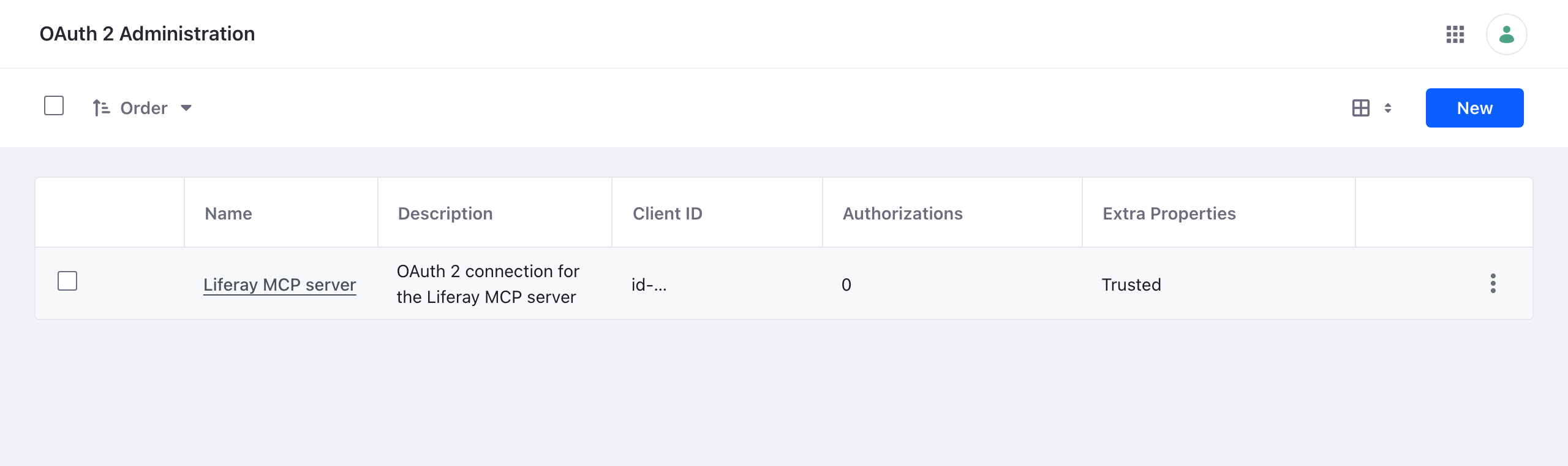
Liferay creates an OAuth 2 application named Liferay MCP server, shown in Control Panel → Security → OAuth 2 Administration, which acts as the service user:
Step 3: Run the Server
The server’s container joins Liferay’s network (--network container:liferay), and reads the routes from Liferay’s volume. Both run as user ID 1000, so no copy is needed.
-
Shared, over HTTPS:
  docker run -d --name liferay-mcp --restart unless-stopped --network container:liferay \
    -v liferay-routes:/opt/liferay/routes:ro \
    -v /srv/liferay-mcp/secrets:/run/mcp-secrets:ro \
    -v liferay-mcp-data:/data \
    -e LIFERAY_URL=http://localhost:8080 \
    -e LIFERAY_ROUTES_CLIENT_EXTENSION=/opt/liferay/routes/default/liferay-mcp-oauth \
    -e MCP_HTTP_HOST=0.0.0.0 \
    -e MCP_PUBLIC_URL=https://mcp.example.com \
    -e MCP_TRUST_PROXY=private \
    -e MCP_HTTP_API_KEYS_FILE=/run/mcp-secrets/api-keys \
    ghcr.io/liferay-community-apac/liferay-legacy-mcp:1.1.0-slim --http
Create
/srv/liferay-mcp/secrets/api-keysfirst, as in Give Services API Keys. The server is reachable at127.0.0.1:3333on the Docker host, through the port Liferay’s container publishes. Put your HTTPS reverse proxy forhttps://mcp.example.comin front of it, and follow For Services and People for API keys and sign-in. -
For a person on the Docker host, with Claude Code: the same container, started by Claude Code, as in With Claude Code:
claude mcp add liferay-legacy -- docker run -i --rm --network container:liferay \ -v liferay-routes:/opt/liferay/routes:ro \ -e LIFERAY_URL=http://localhost:8080 \ -e LIFERAY_ROUTES_CLIENT_EXTENSION=/opt/liferay/routes/default/liferay-mcp-oauth \ -e LIFERAY_DEFAULT_SITE=my-site \ ghcr.io/liferay-community-apac/liferay-legacy-mcp:1.1.0-slim -
On another computer: copy the credentials out with
docker cp liferay:/opt/liferay/routes/default/liferay-mcp-oauth ., give them to the person securely, and setLIFERAY_URLto your Liferay’s address.
Checked on Liferay DXP 2025.Q1.29 in Docker: the zip created the application and its credentials within seconds, and the server, in a container sharing Liferay’s network, connected with OAuth 2 and all nine scopes, both started by Claude Code and as the shared HTTPS server. Reached at the Liferay container’s network address, as a published port is, the HTTPS server refused a request without a key or with a wrong one (401), and answered one with a key made as in For Services and People.
Day to Day
- After Liferay’s container restarts, restart the server’s container too, since it shares Liferay’s network:
docker restart liferay-mcp. - If you replace Liferay’s container, the client extension zip goes with it: copy it in again as in Step 2. The routes volume keeps the credentials, and deploying the zip again keeps the same ones. Restart the server afterwards, since it shares Liferay’s network.