
Installing Liferay Usage Intelligence
The app is one client extension zip. Deploying it adds the dashboard, a read-only OAuth 2 application for it, and a hidden page to open it from.
You need Liferay DXP 2024.Q1 to 2026.Q1 and an administrator account. The app scans only what the signed-in user can see, so use an administrator with access to every site you want to scan.
- Installing the Zip
- Installing with Docker
- Address Requirements for Sign-In
- Showing the Exact Release
- Upgrading and Removing
Installing the Zip
- Download
liferay-usage-intelligence-1.3.2.zip. - Copy it into
[Liferay Home]/deploy/. - Wait until the log shows
STARTED liferay-usage-intelligence. -
Sign in as an administrator and open:
https://<your-liferay>/web/usage-intelligence/dashboard -
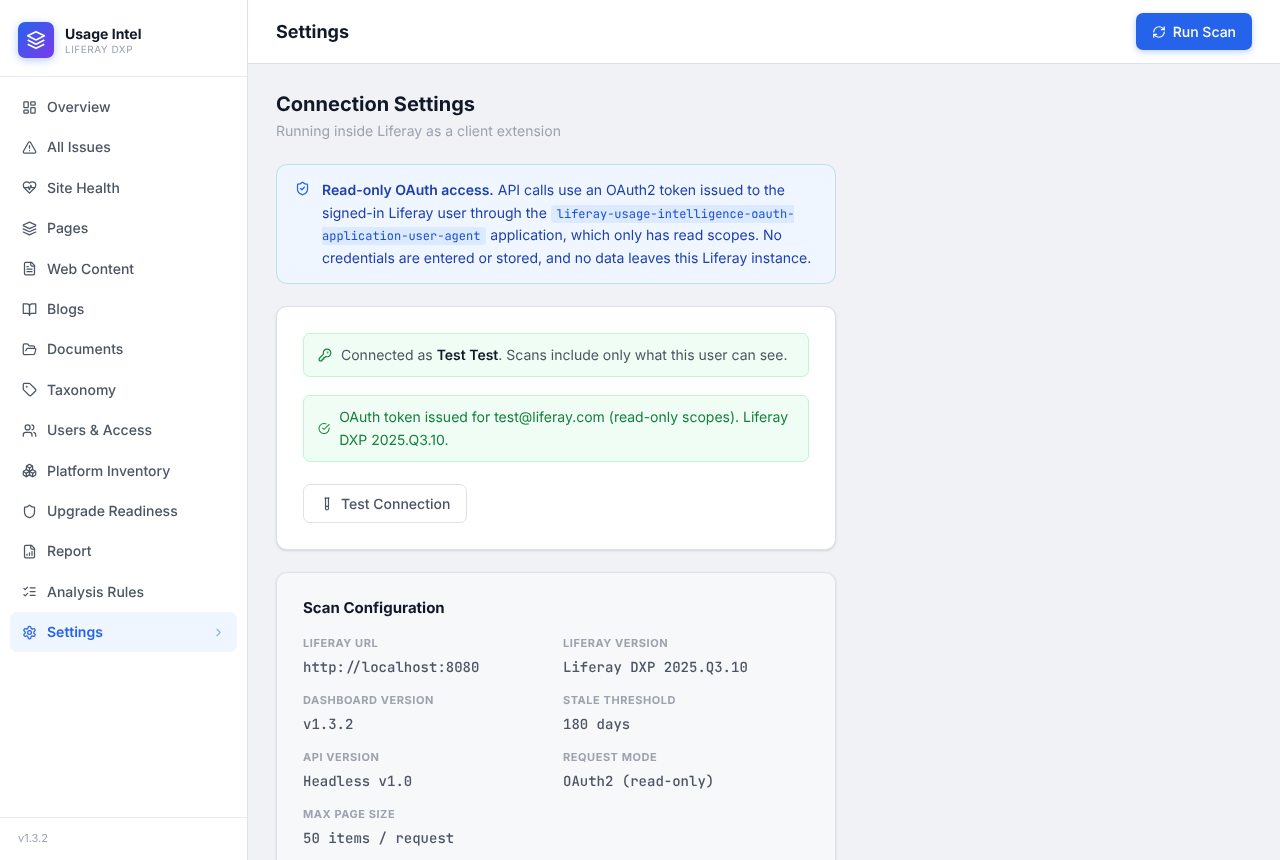
Click Run Scan. Settings → Test Connection shows which user the app is connected as, and the Liferay release it detected:
Deploying the zip creates:
- A client extension with the dashboard, under Applications → Client Extensions.
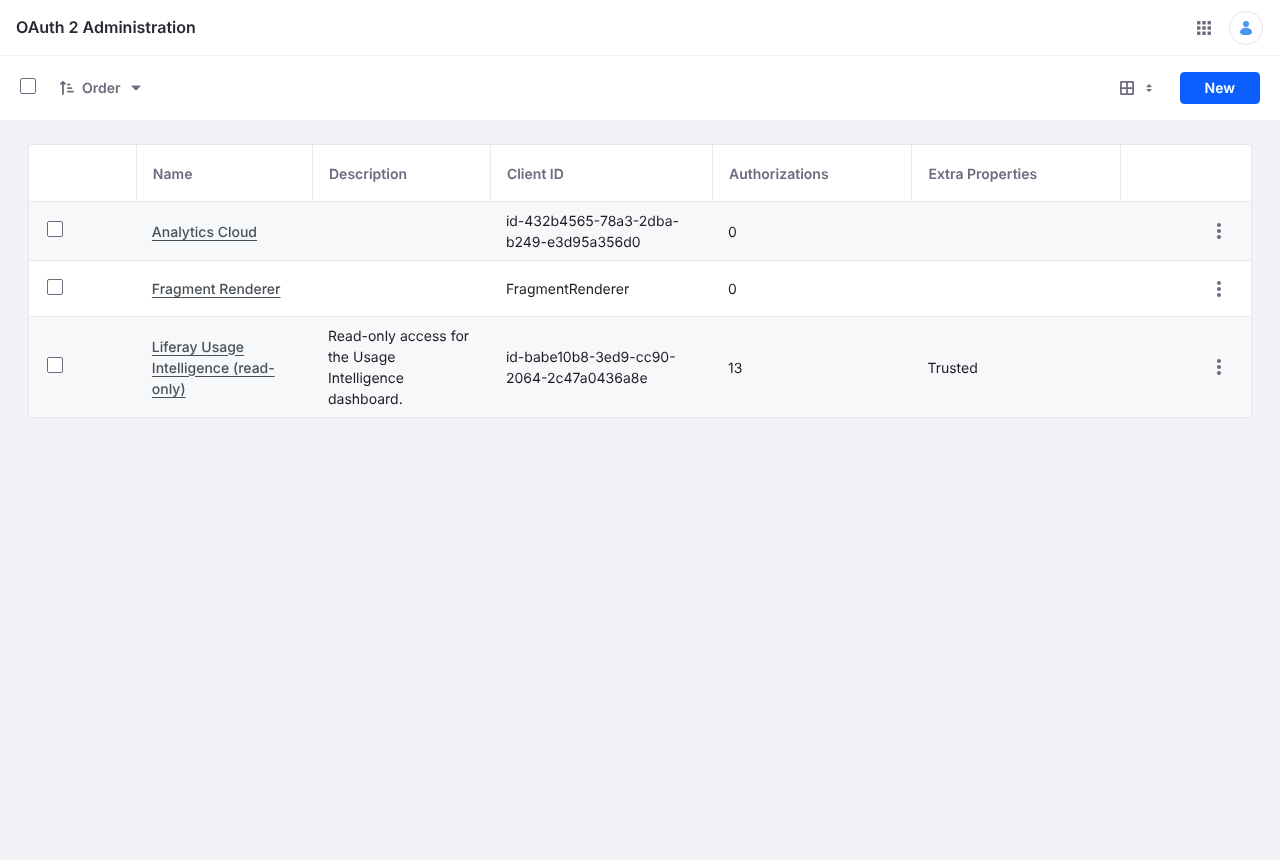
- An OAuth 2 application, Liferay Usage Intelligence (read-only), in Control Panel → Security → OAuth 2 Administration.
- A site called Usage Intelligence with one hidden page holding the dashboard. Its membership is private, and Guest and Site Member can’t view the page, so visitors get Not Found. To let another role in, give it View on the page.
The page is created in the default virtual instance. For other virtual instances, add the Liferay Usage Intelligence widget (Client Extensions category) to an administrator-only page.
Installing with Docker
The image ghcr.io/liferay-community-apac/liferay-usage-intelligence holds the same zip. Add it to your own Liferay image:
FROM liferay/dxp:2025.q3.10
COPY --from=ghcr.io/liferay-community-apac/liferay-usage-intelligence:1.3.2 \
  --chown=liferay:liferay /liferay-usage-intelligence.zip /opt/liferay/deploy/
Or run it to copy the zip into a folder that Liferay’s container reads at startup, /mnt/liferay/deploy, for example as a Kubernetes init container:
docker run --rm -v /path/to/liferay/deploy:/mnt/liferay/deploy \
  ghcr.io/liferay-community-apac/liferay-usage-intelligence:1.3.2
For a running container, copy the zip in and give it to the liferay user, or Liferay can’t pick it up:
docker cp liferay-usage-intelligence-1.3.2.zip liferay:/opt/liferay/deploy/
docker exec -u root liferay chown liferay:liferay /opt/liferay/deploy/liferay-usage-intelligence-1.3.2.zip
Address Requirements for Sign-In
The dashboard gets its token through Liferay’s OAuth 2 browser flow, which only returns to addresses Liferay knows as its own:
- Open the dashboard on one of the instance’s virtual hosts, not a tunnel or a load balancer’s raw host name.
- Redeploy the zip after adding or changing a virtual host. The OAuth application’s redirect addresses are worked out when it’s deployed.
-
Behind HTTPS terminated at a proxy, Liferay must know the public scheme and port. Either trust the forwarded headers, or set them directly:
  web.server.forwarded.protocol.enabled=true
  web.server.forwarded.host.enabled=true
  web.server.forwarded.port.enabled=true
web.server.protocol=https web.server.https.port=443
Visitors who aren’t signed in, and anyone whose session ends while the dashboard is open, are sent to the portal’s home page.
Showing the Exact Release
Every quarterly release reports itself as 7.4.13, so the app reads the release from Liferay’s Liferay-Portal header. That header names the release only with this portal property:
http.header.version.verbosity=full
Without it, the app estimates the release and marks some upgrade findings as “depends on exact release”.
Upgrading and Removing
- To upgrade, deploy the new zip the same way. Liferay replaces the old one and updates the page.
- To remove, undeploy the client extension in Applications → Client Extensions. That removes the dashboard and its OAuth application, which revokes its access. Then delete the Usage Intelligence site in Control Panel → Sites.