
SharePoint Discussions to Liferay Forums
This recipe uses Liferay Migration Studio, which is coming soon. The recipe describes how the migration works so you can plan for it; you can follow it once Migration Studio is released.
What You’ll Build
Your SharePoint Server 2016 discussion boards, moved into a Liferay Forums site: every discussion, reply and reply-to-a-reply, with its original author, best answer, attachments and likes. Each board becomes a forum category, and members carry on the conversations where they left off.
Ingredients
| Ingredient | Type | Guide |
|---|---|---|
 Liferay Forums 1.0.0 |
Marketplace App | App page, Liferay Forums guide, download |
| Liferay Migration Studio (coming soon) | Marketplace App | App page, Liferay Migration Studio guide |
| Batch import that keeps each record’s creator | DXP feature | Batch Engine API Basics: Importing Data |
Before you start, you need:
- Liferay DXP 2026.Q1 LTS with Liferay Forums 1.0.0 installed, its forum site created and its microservice running. The microservice checks every new message, so the migration can’t post while it’s down.
- A SharePoint Server 2016 account that can read the site with the discussion boards. SharePoint 2013 and 2019 use the same REST API, so they should work the same way, but they haven’t been tested.
- A Liferay administrator account for the forum’s Liferay.
- Docker, to run Migration Studio on a computer or server that can reach both SharePoint and Liferay.
Steps
Step 1: Set Up Liferay Forums
Install Liferay Forums, create the forum site and start its microservice, as the Liferay Forums guide describes. Note the forum site’s friendly URL (forums by default).
Then turn off email notifications on the forum’s Liferay until the migration is done, so members who subscribe to a category aren’t emailed about every migrated post.
Step 2: Check Your SharePoint Users
Migration Studio creates a Liferay user for each SharePoint site user with an email address, and keeps them as the authors of their discussions, replies and likes. Users get no password: they sign in with your single sign-on, or reset their password.
Check SharePoint’s site users before you start. Posts by someone without an email address, such as an account that left the company, are posted by the migration account instead, and the validation in Step 5 lists them.
Step 3: Create the Migration Project
- Start Migration Studio and open it in your browser.
-
Click New project and choose the SharePoint discussion boards → Liferay Forums preset. Enter the SharePoint server’s address, the SharePoint site (its path under
/sites/, such asintranet), and the forum’s Liferay address, then click Create project.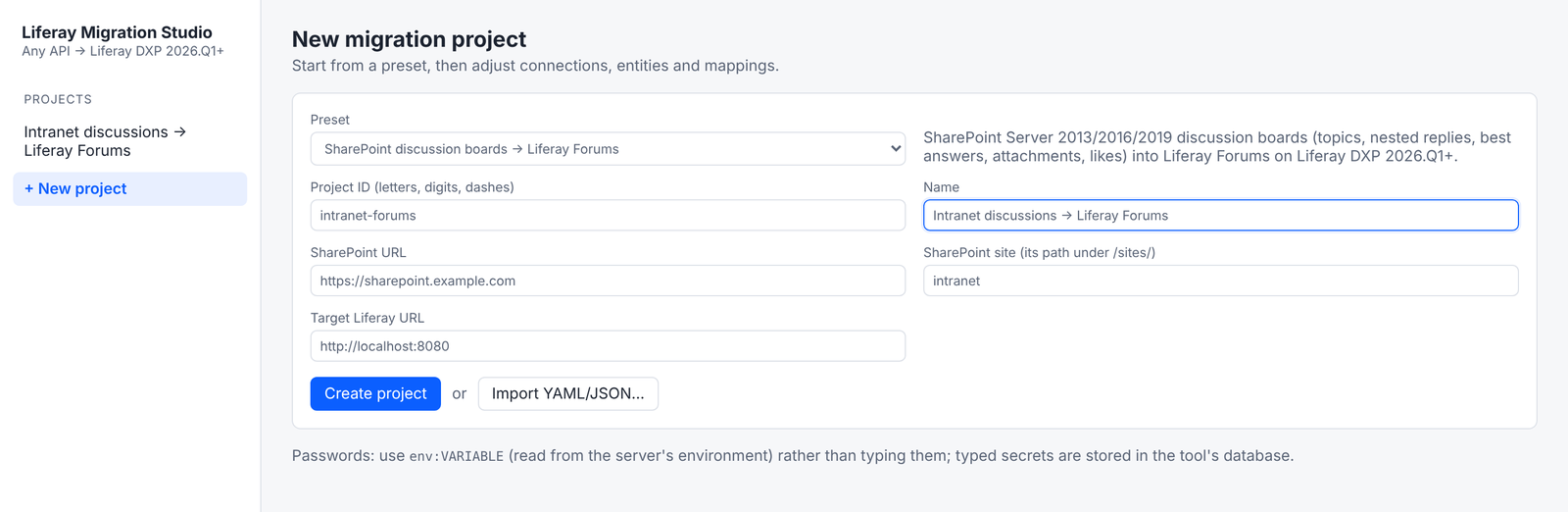
- If the forum site’s friendly URL isn’t
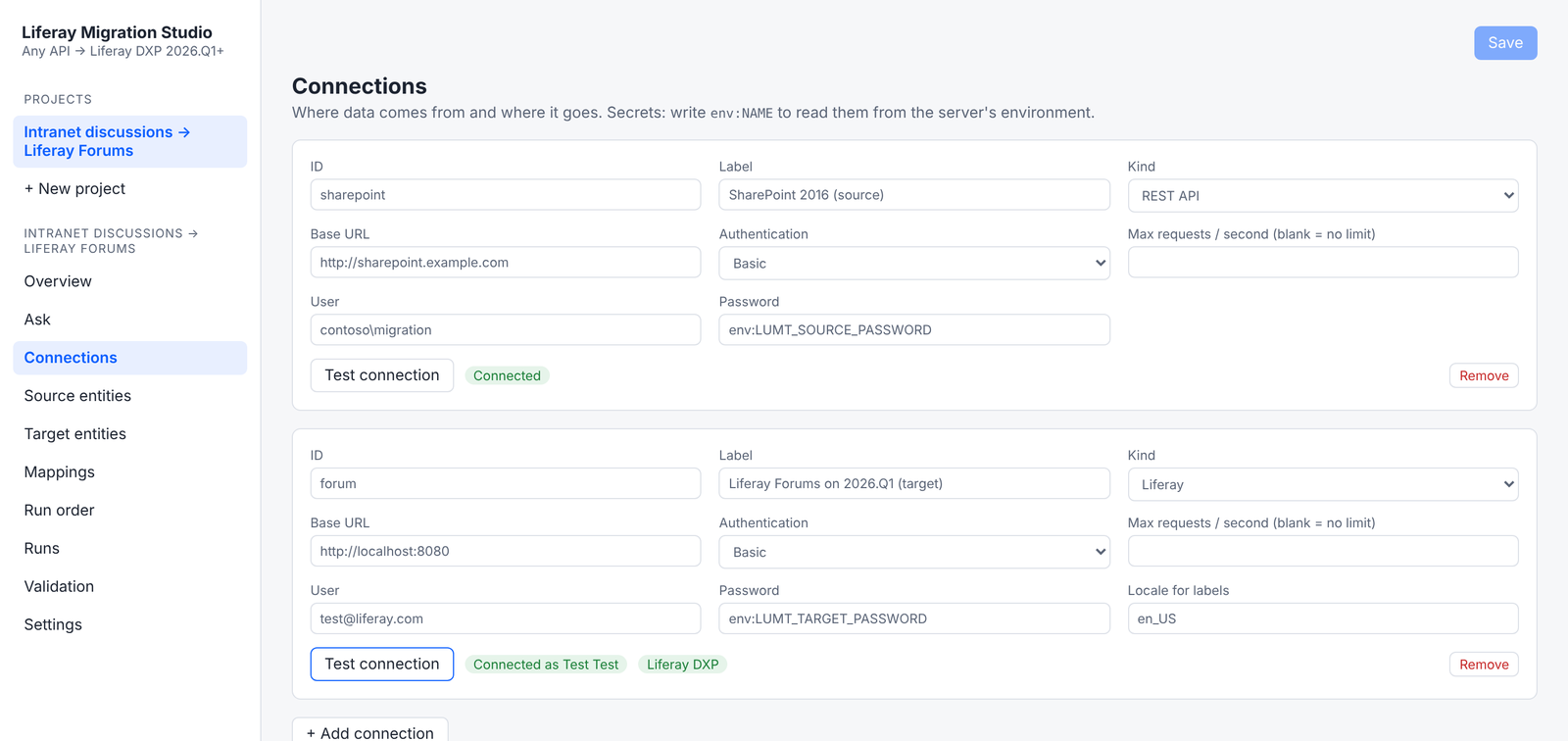
forums, changeforumSiteKeyin Settings → Variables. - In Connections, enter the user for each side:
- SharePoint: a user who can read the site. SharePoint Server on premises usually needs NTLM authentication, with the user as
DOMAIN\user. - Liferay: the forum’s administrator account.
Write passwords as
env:followed by the name of an environment variable on the Migration Studio server, such asenv:LUMT_SOURCE_PASSWORD, so they’re never stored in the project. - SharePoint: a user who can read the site. SharePoint Server on premises usually needs NTLM authentication, with the user as
-
Click Test connection on each connection. The Liferay connection must show Liferay DXP: Migration Studio doesn’t load into Liferay Community Edition.
Step 4: Extract, Dry Run and Load
Migration Studio works out the order from the mappings: users and categories first, then discussions, their original posts and replies (each reply after the one it answers), then attachments, likes, and finally each discussion’s last post date. Run order shows it:
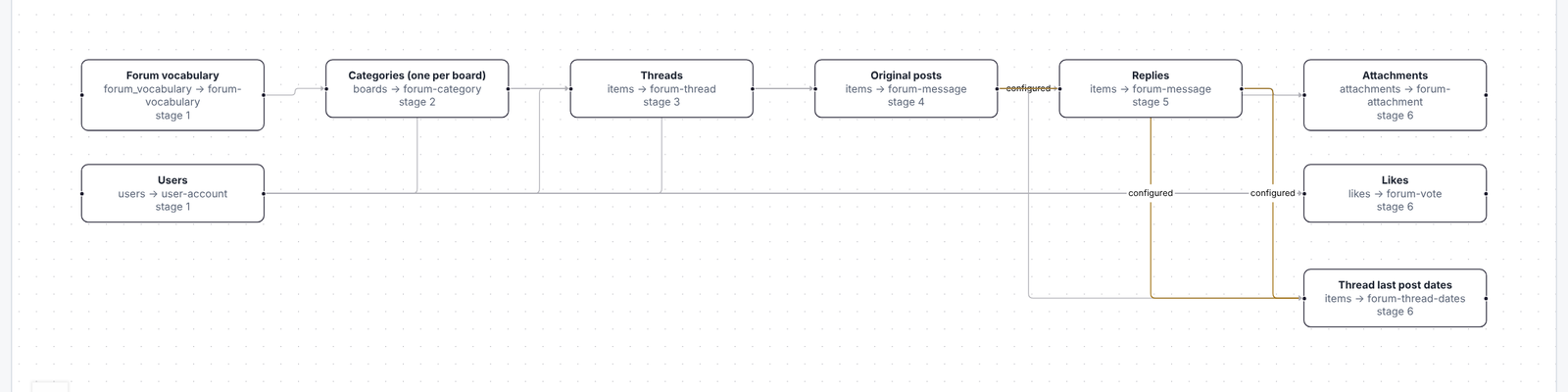
On the Runs page:
- Extract reads the discussion boards, site users, discussions, replies, attachments and likes from SharePoint, and stages them.
-
Dry run prepares every request the load would send to Liferay, without writing anything. Check that nothing failed, and use Download requests to review them.
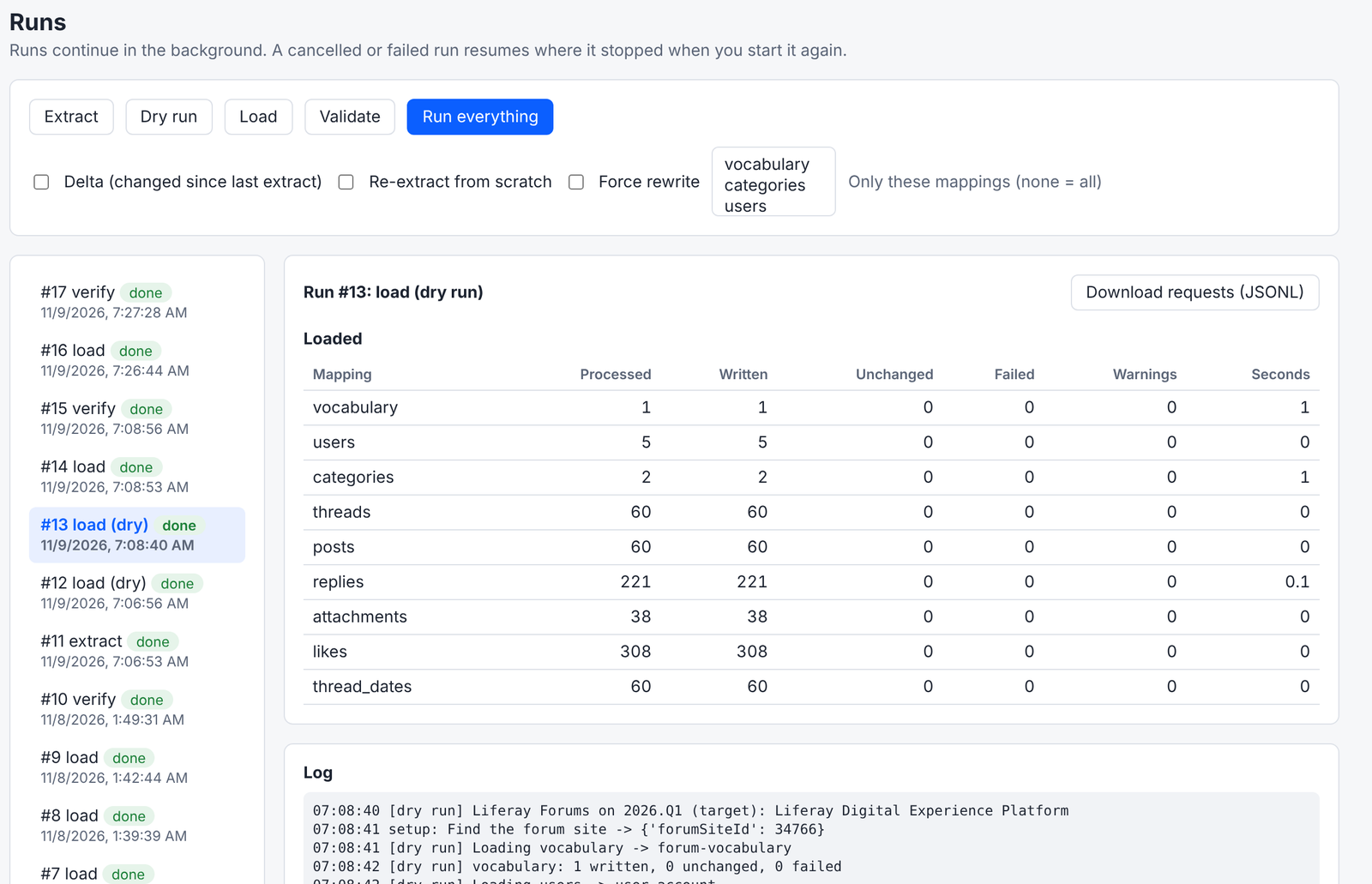
- Load writes to the forum.
How SharePoint maps to Liferay Forums:
| SharePoint | Liferay Forums |
|---|---|
| Discussion board | Forum category |
| Discussion | Topic, with its original post |
| Reply, and reply to a reply | Message, nested under the message it answers |
| Best answer | The message marked as the answer |
| Attachment | Attachment on the post or reply |
| Like | A vote by the user who liked it |
| Site user with an email | Liferay user, kept as the author |
| Last updated | The topic’s last post date |
Each post starts with Originally posted on and its SharePoint date, because Liferay sets a migrated post’s own date to the time of the migration.
The load can be stopped and run again: every migrated record has a stable reference, so records already in the forum are updated, not duplicated.
Step 5: Validate
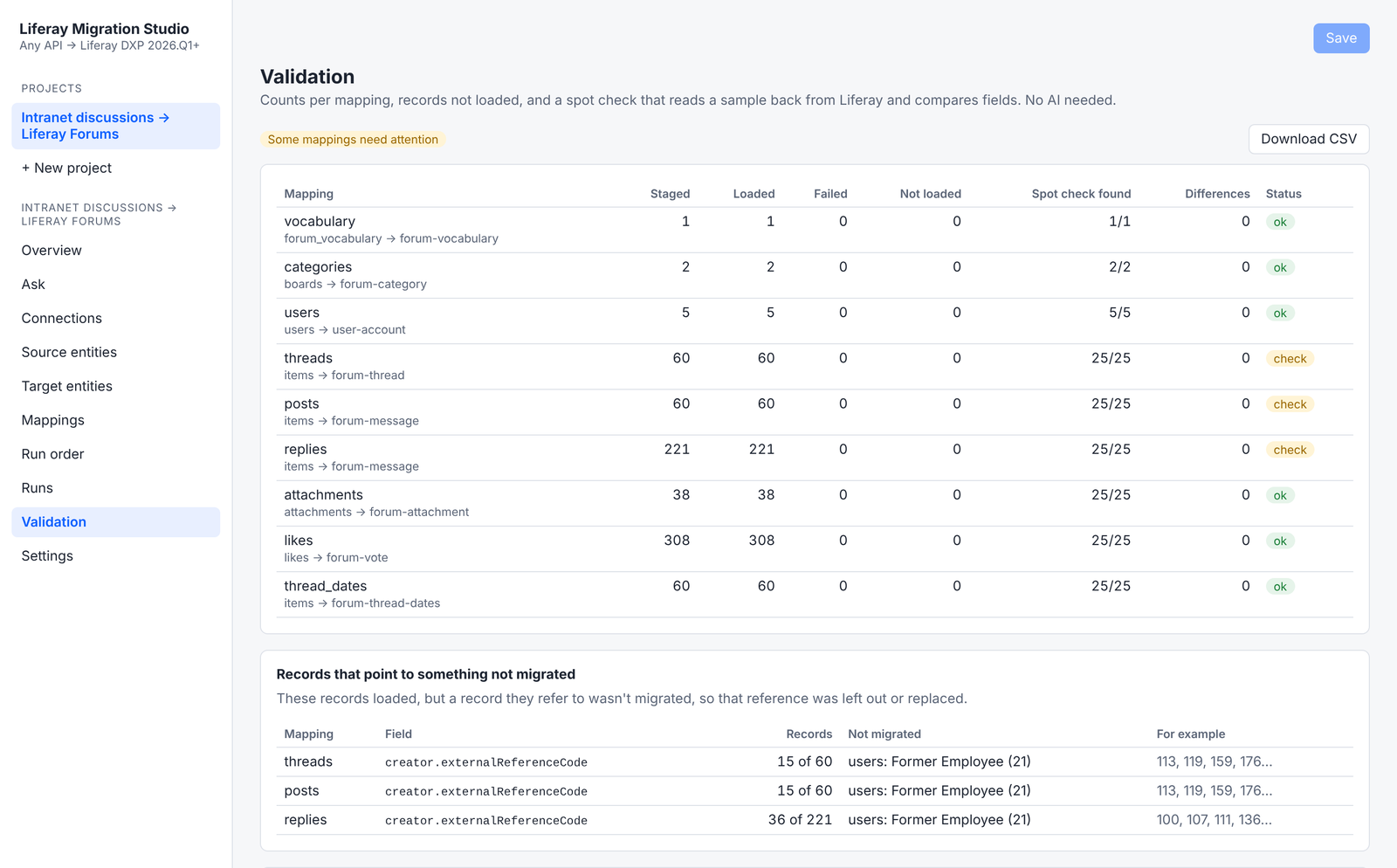
Click Validate. Migration Studio checks:
- Counts: every discussion, reply, attachment and like was loaded.
- A sample of migrated posts, read back from Liferay and compared field by field with SharePoint, including the author.
- Records that point to something not migrated: posts whose author wasn’t migrated, such as the posts and replies by Former Employee, a SharePoint user without an email address. The migration account posted them instead.
Result
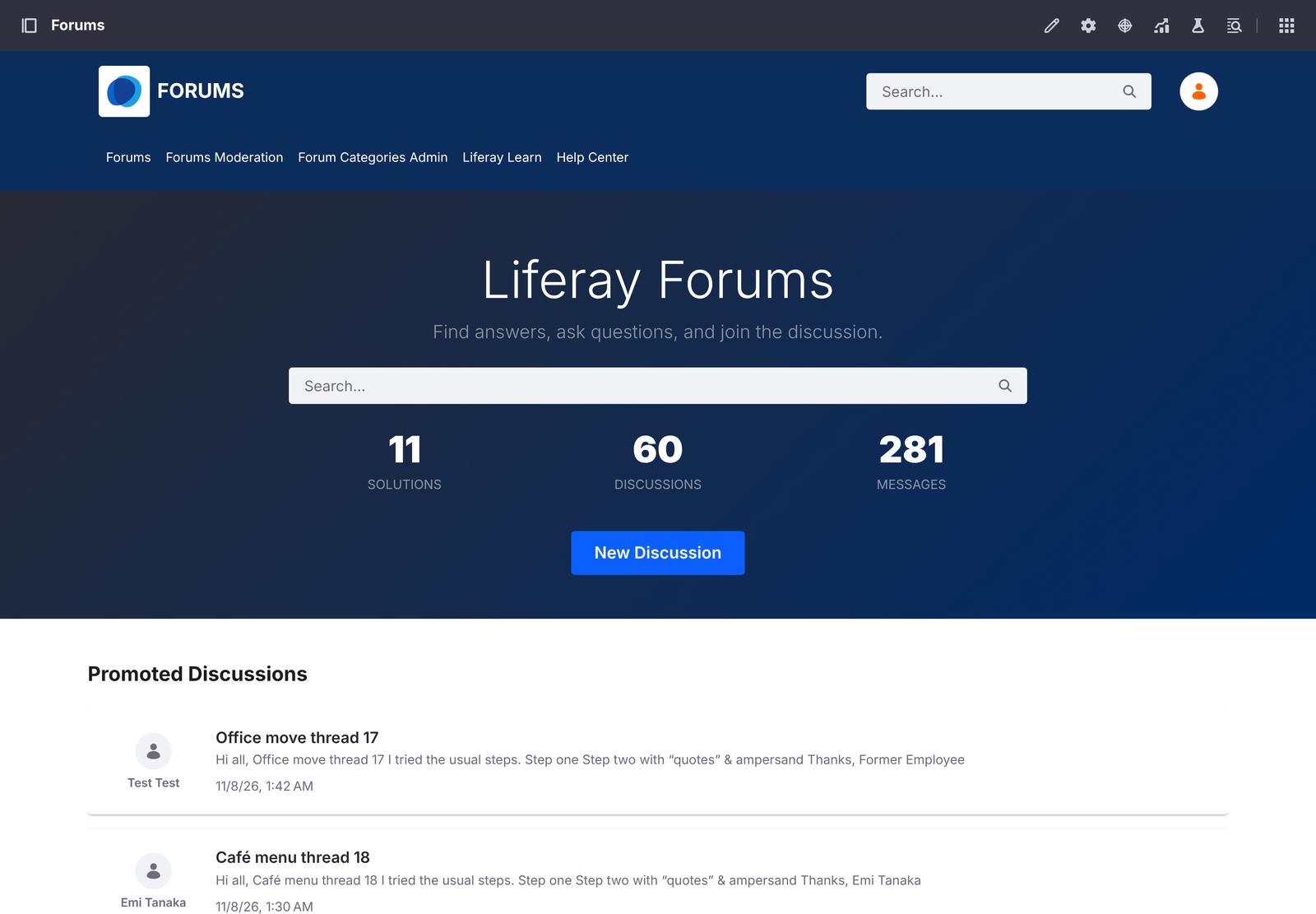
Open the forum. Each SharePoint board is a category, and its discussions show their replies in the same tree as in SharePoint, with best answers marked and likes counted as votes. Sign in as a migrated member and check that their posts show them as the author.
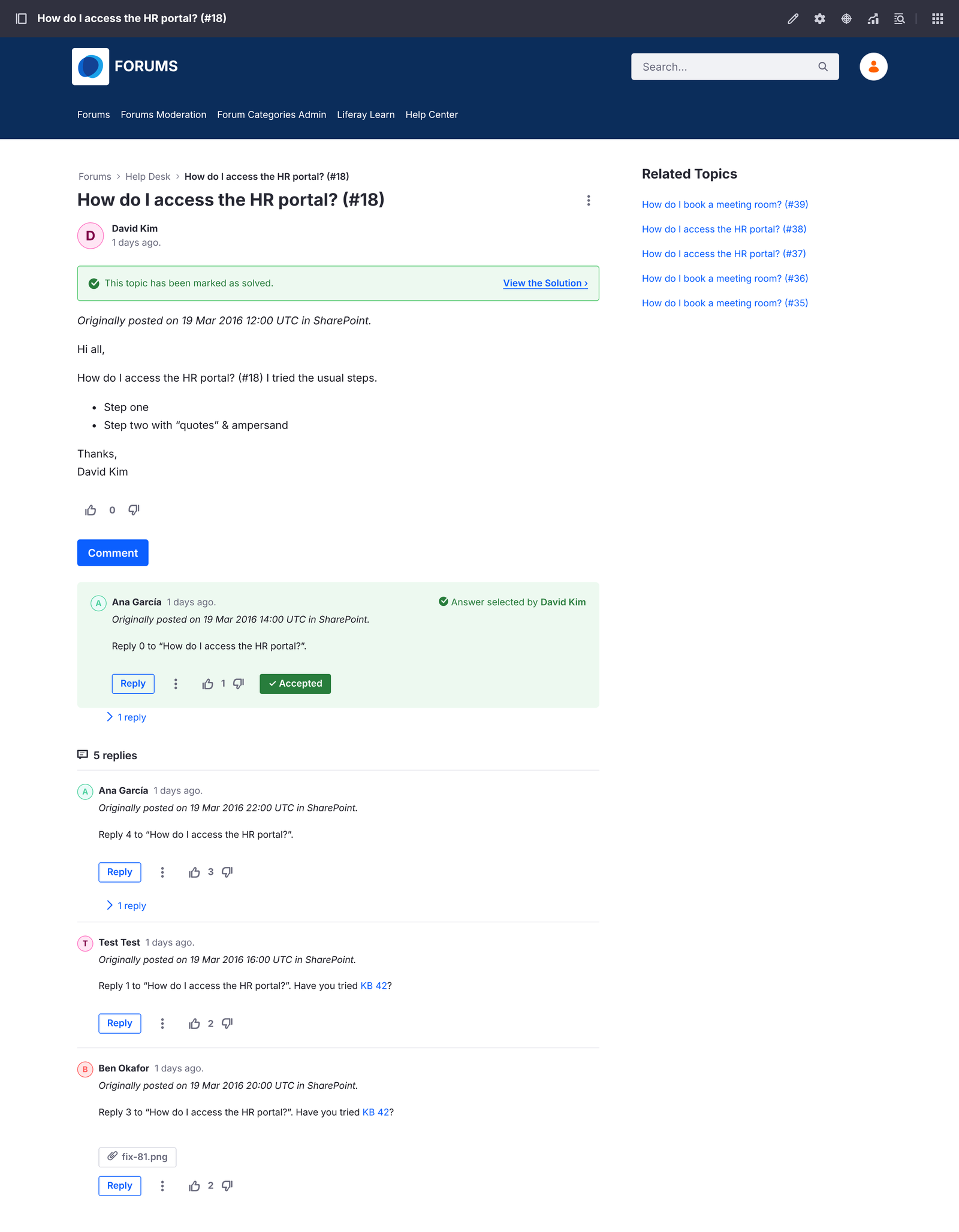
Tested: Liferay Forums 1.0.0 on Liferay DXP 2026.Q1.4 LTS with PostgreSQL, against a simulated SharePoint Server 2016 REST API. It migrated 60 discussions, 281 messages nested up to three levels, 38 attachments and 308 likes, with no errors. Every post kept its author, except the 51 by a user without an email address. Run a test migration from your own SharePoint farm into a test forum first.
Not migrated:
- Original dates as Liferay’s own. Lists show the migration date; each post’s first line keeps the SharePoint date.
- Users without an email address, and their likes. Their posts are posted by the migration account.
- Star ratings, Featured discussions, alerts and subscriptions.
Where next:
- Turn email notifications back on, and tell members where the forum now lives.
- At cutover, start an extract from the Runs page with Delta (changed since last extract) checked, then Load again: only discussions changed since the first migration are read and written.
- Forums Assistant with AI Hub, to help members find the migrated discussions.