
AI Help
Preview. The AI features are in development. Details can change before release.
Everything in Liferay Migration Studio works without AI. AI is off until you connect a model, and you choose which one:
- a hosted model, through Anthropic’s API or any OpenAI-compatible API, with your own key;
- or a model you run yourself (for example with Ollama, LM Studio or vLLM), which needs no key and keeps everything on your own infrastructure.
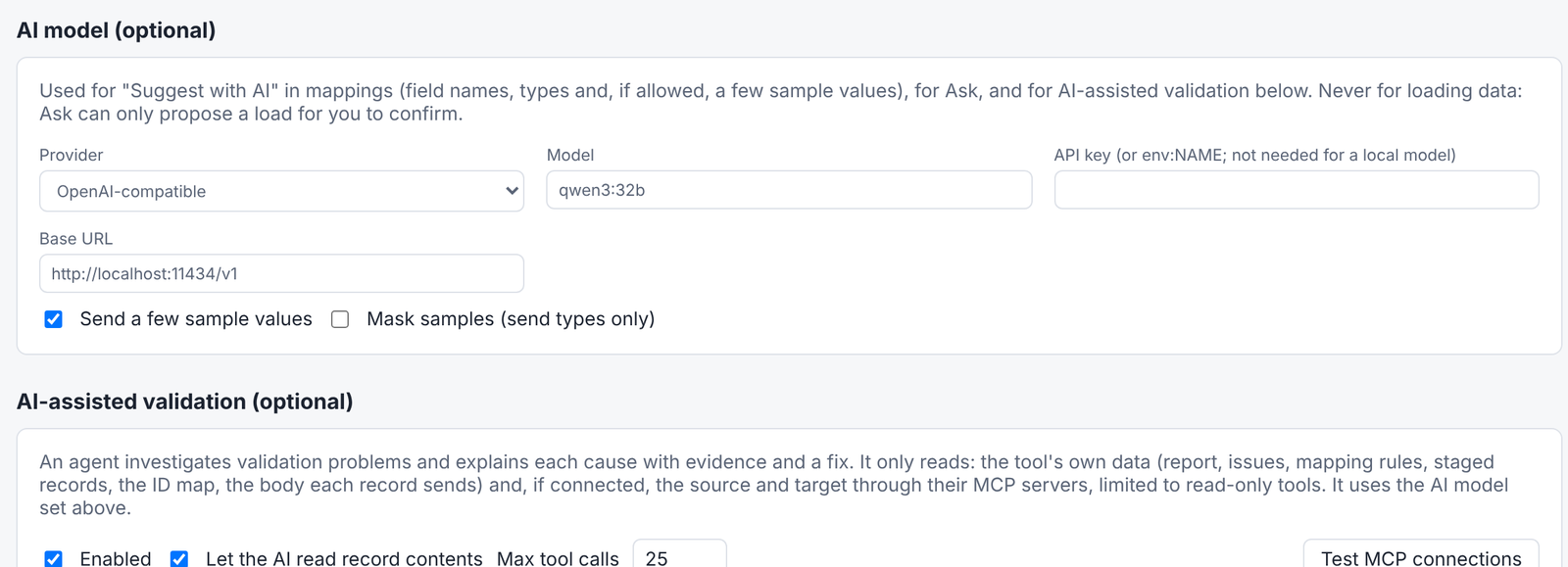
Set it up per project in Settings → AI model: the provider, the model, and either a key (written as env: and
an environment variable’s name) or, for a model you run yourself, its address.
What It Does
Suggest Field Mappings
On a mapping, Suggest with AI proposes which source field goes to which Liferay field, each with a confidence and a reason. You accept or reject each suggestion; nothing changes until you do.
The model sees the field names and types of both sides. A few sample values help it match, and you can turn them off or replace them with their type. Suggest (no AI) matches names and types without any model.
Explain Validation Problems
When validation finds problems, Investigate with AI looks at the records involved and reports one finding per cause: the affected records, the evidence, a suggested fix and how confident it is. For example: “12 articles failed because their structure wasn’t migrated: the structures mapping is turned off.”
It can also read the source and target Liferay through their MCP servers: the Liferay Legacy MCP server for 2024.Q1 to 2025.Q4, and Liferay DXP 2026.Q1+’s own MCP server.
Ask About a Migration
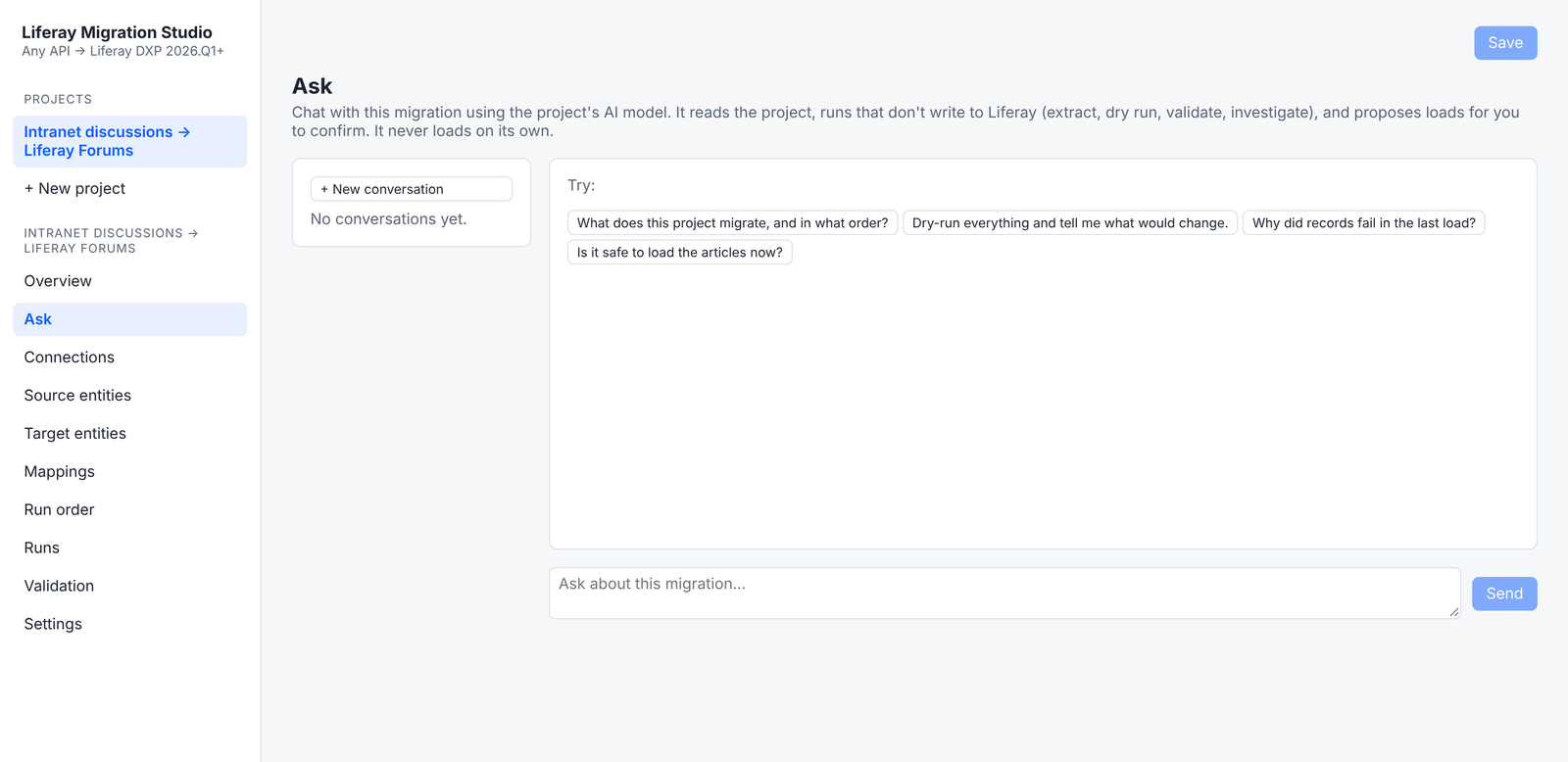
Ask is a chat about the open project: “Is it safe to load the articles now?”, “Why did records fail in the last load?”
- It can read the project and its runs, reports and issues.
- It can start runs that don’t write to Liferay: extract, dry run, validate and investigate.
- It can’t load. It can only propose a load, which runs when you click Run it.
What the AI Can’t Do
- Write to Liferay. The AI only gets read-only tools. Tools from MCP servers are offered only if they’re read-only, and the rest are blocked and listed in Settings. On Liferay’s own MCP server, only read operations are let through.
- Load from the chat. In Ask, a load always needs a person to confirm it.
- See records you don’t want it to see. With Let the AI read record contents turned off, the investigation and Ask tools show the AI counts, messages and mapping rules, but no record contents.
- Receive bulk data. The model works with summaries and individual records it asks for. Migrated data never passes through it.
What’s Been Tested
Ask and AI-assisted validation have been tested end to end with a scripted model standing in for a real one: the tools they offer, the read-only limits, refused writes, and proposals that need confirming. AI-assisted validation has also run against the live MCP servers of Liferay 2025.Q1 and 2026.Q3. Suggest (no AI) is tested; Suggest with AI hasn’t been tested with a model yet. Testing with real models is next, before release.
Use Your Own AI Assistant
Studio includes an MCP server, so Claude or another MCP client can work with migrations from your own assistant: list projects, check run status, start runs and read validation reports. Runs it starts are dry runs unless it asks for a real load, and assistants such as Claude ask you before running a tool that can write. On a server it uses the same access token as the web UI.