
In-editor AI Assistant
- Turn it on
- Writing tools
- Suggest tags and categories
- Generate a field value
- Generate an image
- The proxy
- Upgrading to 2026.Q1 or later
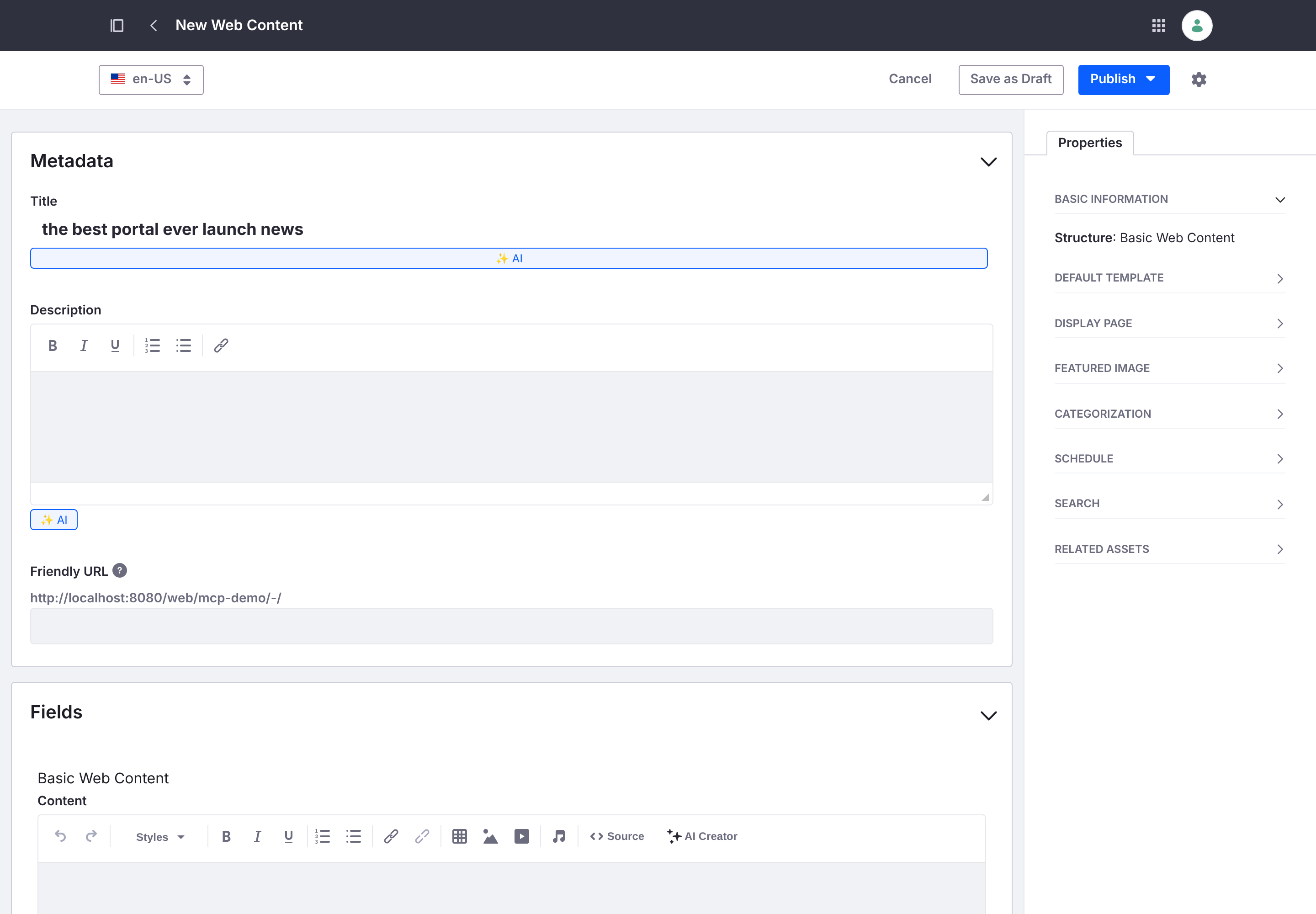
With AI Hub Assistant on, an ✨ AI action appears beside Web Content fields in the editor. Each action runs an AI Hub agent for the signed-in user and writes the result back. These are AI Hub’s own agents — the connector defines none.
Turn it on
Instance Settings → AI Hub → AI Hub Tokens → AI Hub Assistant (off by default). While off, no trigger is added. The assistant turns token issuing on by itself, so it works with AI Hub Tokens configured even if AI Hub Chat is off.
Every assistant action runs in the browser as the signed-in user, so it is gated by that user’s own permissions — not by the connector’s token scopes. See Author Permissions for what a non-admin author needs.
Writing tools
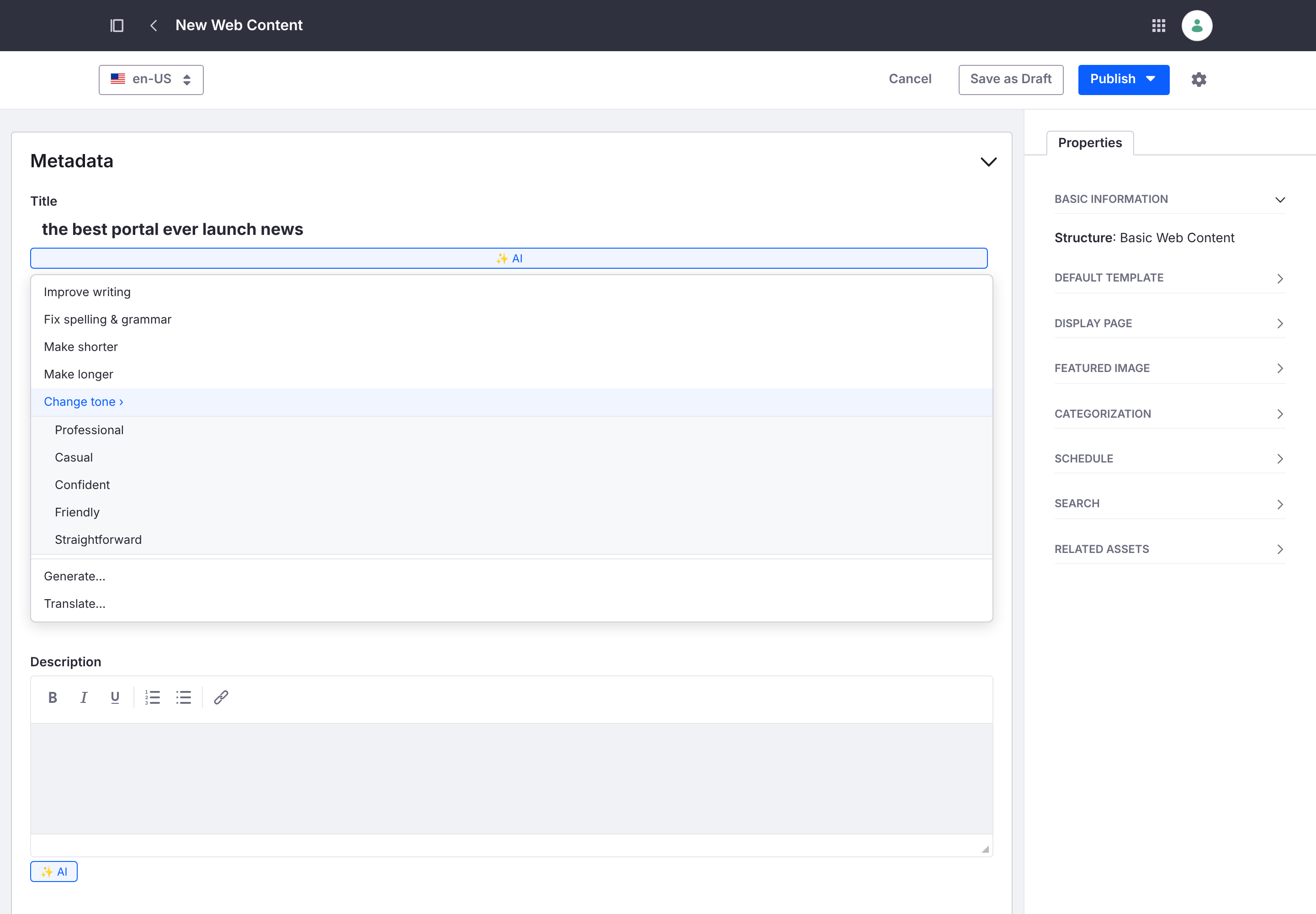
On the Title and on rich-text bodies, the ✨ AI menu offers the writing tools. Change tone opens a submenu of tones.
| Action | Agent | What it does |
|---|---|---|
| Improve writing | L_IMPROVE_WRITING |
Rewrites the field more clearly. |
| Fix spelling & grammar | L_FIX_SPELLING_AND_GRAMMAR |
Corrects the text. |
| Make shorter / longer | L_MAKE_SHORTER / L_MAKE_LONGER |
Condenses or expands it. |
| Change tone | L_CHANGE_TONE |
Rewrites in the tone you pick. |
Suggest tags and categories
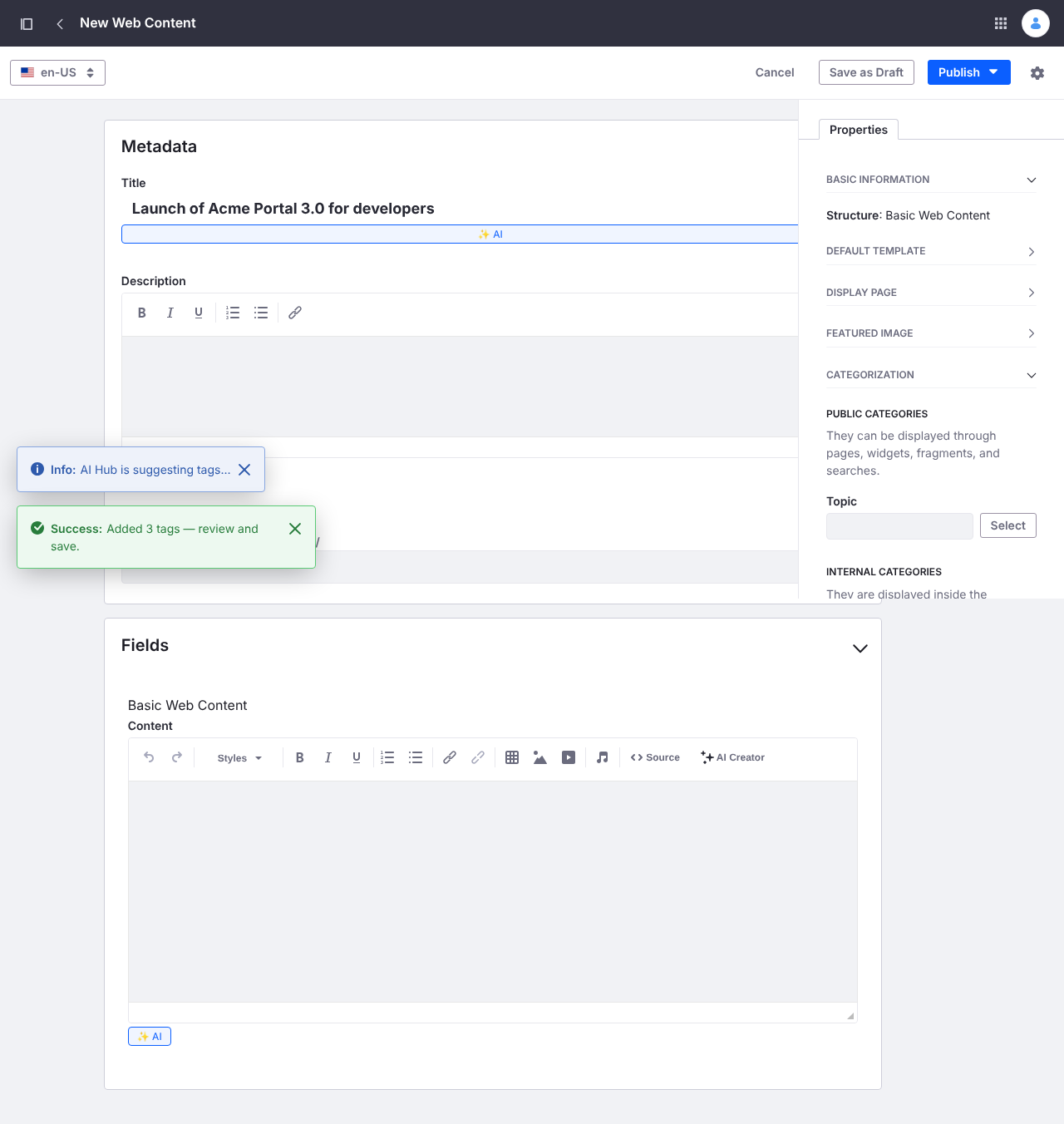
On the Categorization panel, ✨ Suggest tags reads the article, fetches the site’s existing tags, asks AI Hub (L_GENERATE_TAGS), and applies the suggestions to the tags picker.
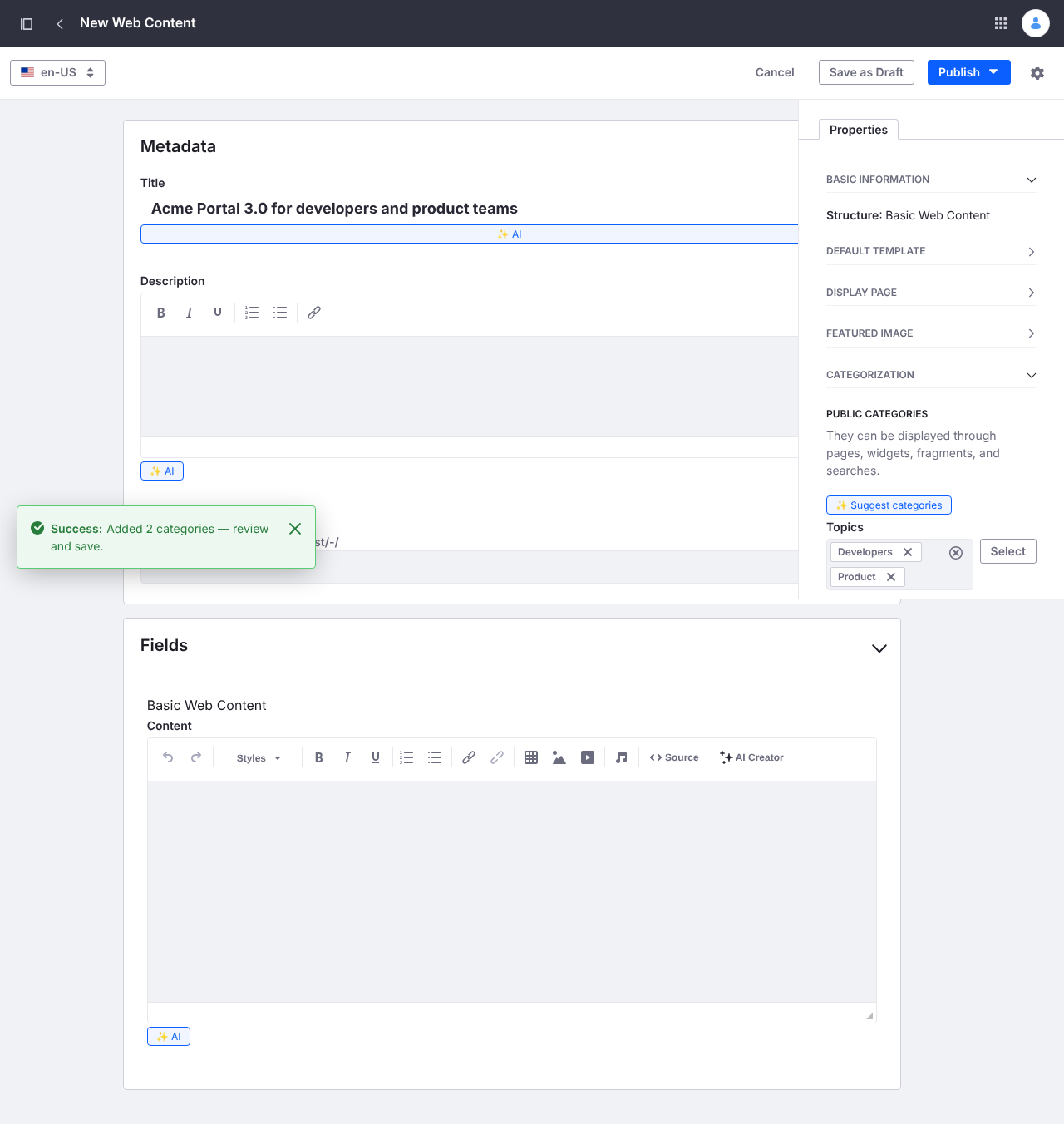
✨ Suggest categories (L_AUTO_CATEGORIZE) matches the article against the site’s vocabularies and applies the categories that fit — the ids land in the form’s hidden fields and persist on save.
Generate a field value
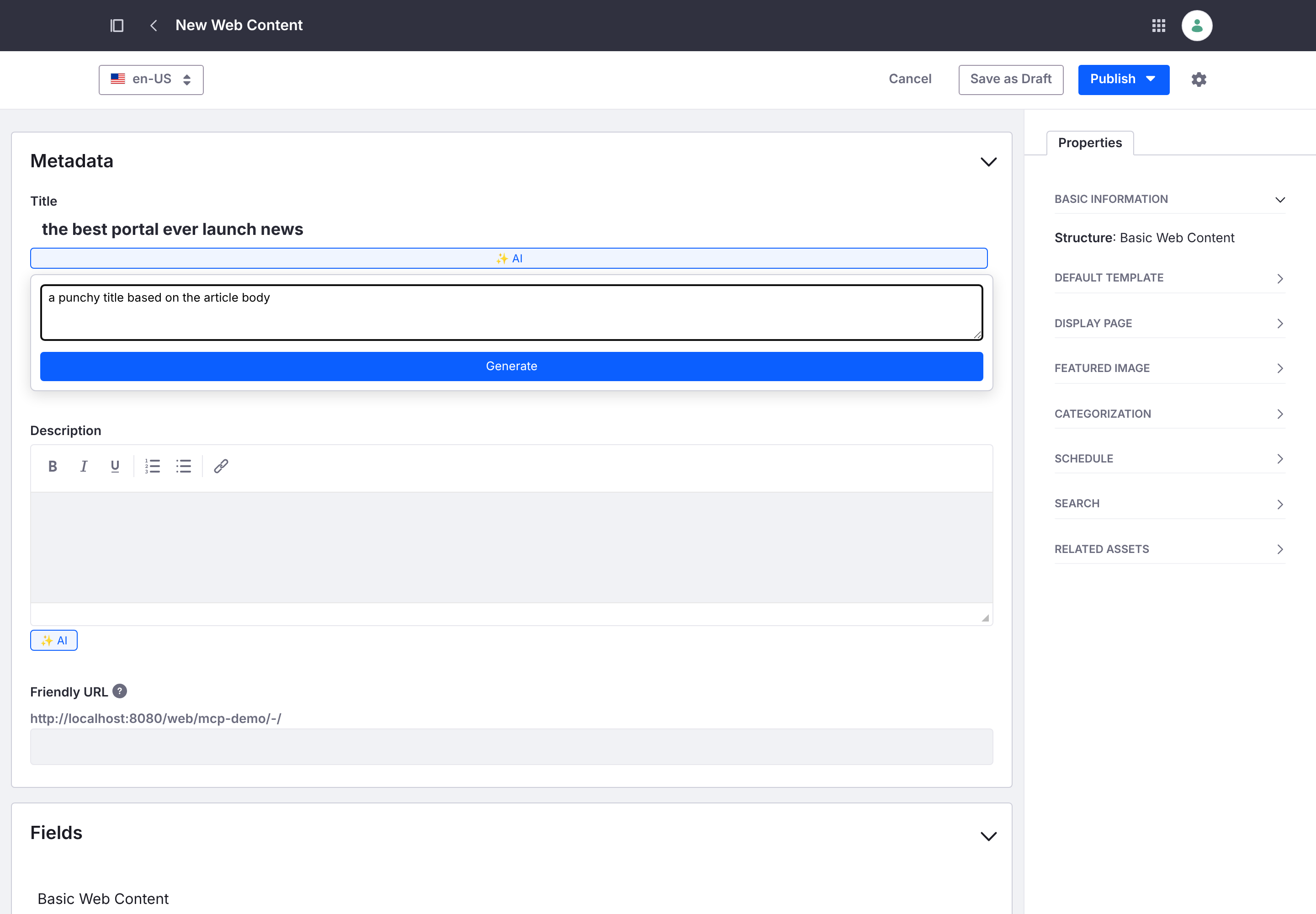
✨ Generate takes an instruction, runs L_GENERATE_FIELD_VALUE, and writes the returned value into the named field (Title input or CKEditor).
Generate an image
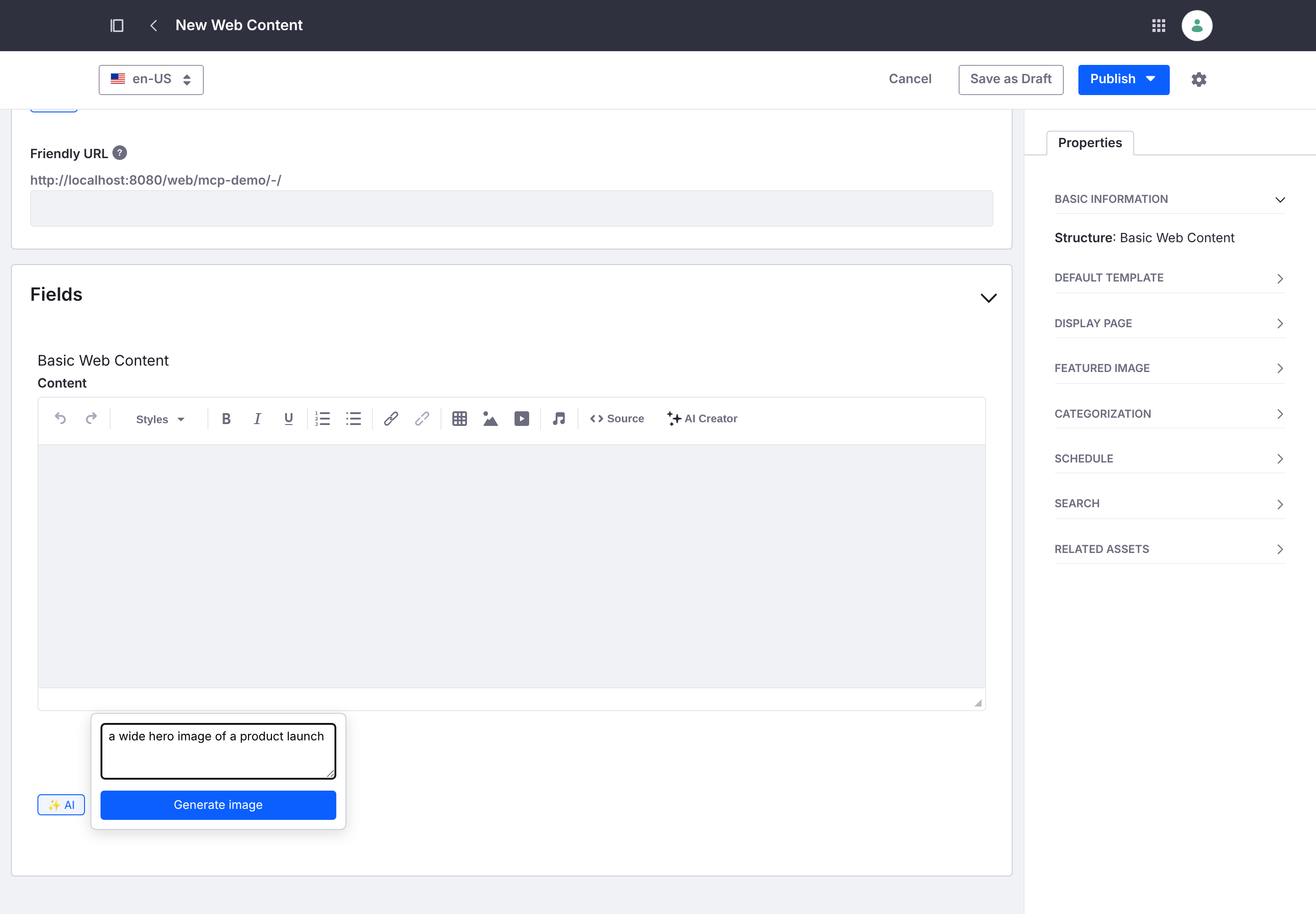
✨ Generate image on a rich-text body takes a description, generates an image through AI Hub’s agent event stream (L_GENERATE_IMAGE), uploads it to Documents & Media, and inserts it inline into the body.
The proxy
With the proxy on (the default), the browser never gets AI Hub’s access token. The assistant fetches tokens (POST /o/ai-hub-cell/v1.0/authorization-tokens), then calls agent-instances through this Liferay’s proxy at /o/ai-hub-cell-proxy, which adds AI Hub’s access token on the server and forwards the call with the on-behalf-of user token. The proxy passes the agent-instances family only. See Security.
Upgrading to 2026.Q1 or later
Turn the assistant off and uninstall the connector; AI Hub’s own in-editor assistant takes over.